Posts

Script to install all updates in software center

<# .SYNOPSIS Installs every missing software update currently visible in Software Center. .DESCRIPTION Intended for use with Configuration Manager's Run Scripts feature. The script queries the local ConfigMgr Client SDK for deployed, applicable, missing updates that are visible in Software Center, then submits all of them to CCM_SoftwareUpdatesManager in one installation request. Installation continues asynchronously after this script finishes. Reboot and maintenance-window behavior remain controlled by the ConfigMgr deployment and client settings; this script does not force a reboot. .NOTES Run context: Local System (the normal SCCM Run Scripts context) PowerShell: Windows PowerShell 5.1 #> $ErrorActionPreference = 'Stop' $Namespace = 'root\ccm\ClientSDK' $UpdateClass = 'CCM_SoftwareUpdate' $MaximumRows = 25 $EvaluationStateNames = @{ 0 = 'None' 1 = 'Av...

How to Downloading Windows Store App appx files

 When you have Windows store disabled, it can be tricky to deploy Windows store apps to your SCCM clients. One method is to deploy the appx or msix files with SCCM but getting these files is spotty. the Most popular method is to use a website that is hosted by a 3rd part I really dont like using this method and untill recently seemed to be the most reliable method. However, I recently have been playing with Microsoft Winget utility built into Windows 11. The utility allows you to install various software or download the resource files for it.  by running this command  winget download <StoreAppID> -s msstore --disable-interactivity --accept-source-agreements --accept-package-agreements You can download the recourse files for a Windows Store App then package those files in SCCM.
 In the vast landscape of the internet, every device connected to the World Wide Web is assigned a unique identifier known as an IP address. Your external IP address is the one that the world sees, distinguishing your device on the internet. While many users are familiar with finding their internal IP addresses, discovering the external IP address can be a valuable skill for various purposes, from troubleshooting network issues to securing your online presence. In this blog post, we'll delve into how to find your external IP address using PowerShell, a powerful command-line interface and scripting language developed by Microsoft. Step 1: Open PowerShell Firstly, open PowerShell on your Windows machine. You can do this by pressing the Windows key, typing "PowerShell," and selecting the application from the search results. Alternatively, you can access it from the Start menu or the taskbar. Step 2: Run the Command Once PowerShell is open, type or paste the following command...

Mastering Windows Service Management with NSSM (Non-Sucking Service Manager)

Windows services play a crucial role in ensuring the seamless functioning of various applications and processes on your system. Managing these services efficiently is essential for maintaining system stability and performance. One powerful tool that simplifies the process of creating and managing services on Windows is NSSM, short for Non-Sucking Service Manager. In this blog post, we will delve into the intricacies of NSSM and guide you on how to leverage its capabilities for effective service management. What is NSSM? NSSM is an open-source utility designed to make Windows service creation and management more straightforward and flexible. Unlike the built-in Service Control Manager (SCM), NSSM provides additional features and functionalities, making it a valuable tool for system administrators and developers. Features of NSSM: Compatibility: NSSM is compatible with all modern Windows operating systems, including Windows 7, 8, 10, Server 2008, Server 2012, and Server 2016. Configurati...

Detecting Devices with Duplicate MAC Addresses in SCCM

System Center Configuration Manager (SCCM) is a powerful tool for managing and monitoring devices in an enterprise environment. However, encountering devices with duplicate MAC addresses can be a perplexing issue that demands swift resolution. In this blog post, we will guide you through the process of identifying and locating devices with duplicate MAC addresses using SCCM. Understanding the Issue: Duplicate MAC addresses can lead to network conflicts, disrupt communication, and compromise the stability of your IT infrastructure. Identifying the root cause of this problem is crucial for maintaining a well-functioning network. Steps to Detect Devices with Duplicate MAC Addresses in SCCM: Access SCCM Console: Open the SCCM console on your management server. This is the central hub for managing and monitoring devices in your network. Navigate to Assets and Compliance: In the SCCM console, go to the "Assets and Compliance" workspace. This section provides tools for managing devi...

Using the Help Syntax in PowerShell Scripts

Image
PowerShell is a powerful tool for automating tasks and managing system resources on Windows machines. One of the key features of PowerShell is the ability to create custom scripts that can be run from the command line. However, it's important to ensure that these scripts are well-documented and easy to use. This is where help options come in. In this blog post, we'll explore some best practices for writing help options for your PowerShell scripts. Why are help options important? Help options provide important information about how to use your script. They can be accessed by running the command with the -h or -help options. Well-written help options can save time and frustration for both the user and the script author. They can also help ensure that your script is used correctly and that errors are minimized. Best practices for writing help options Use descriptive language Your help options should clearly describe what your script does and how to use it. Use descriptive language...

How to use a function in PowerShell

Image
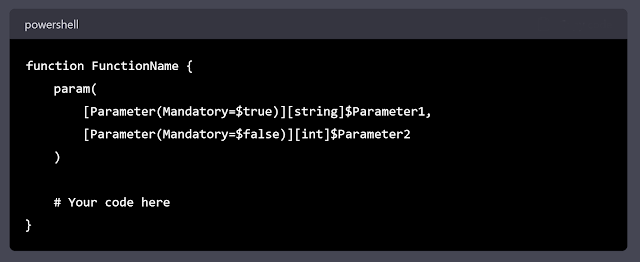
 PowerShell is a powerful scripting language and automation framework developed by Microsoft. It enables IT professionals and developers to automate tasks, manage systems, and access data more efficiently. Functions are an integral part of PowerShell, as they allow you to create reusable code blocks to perform specific tasks. I will go over how to write a function in PowerShell, covering the basic structure, best practices, and examples to help you get started. Basic Structure of a PowerShell Function A PowerShell function is a named block of code that can be reused in scripts or executed as a standalone command. Here's the basic structure of a PowerShell function: A function starts with the function keyword, followed by the function name, and a code block enclosed in curly braces {}. The param block is optional and defines the input parameters for the function. You can specify the data type, default values, and whether the parameter is mandatory or not. Function Naming Conventions...

How to use a PowerShell try catch statement

Image
In PowerShell, error handling is crucial for creating robust and error-resistant scripts. One of the most effective error-handling techniques is using try-catch statements. In this blog post, we'll explore the basics of try-catch statements and how to use them in real-world scenarios. What is a Try-Catch Statement? In PowerShell, a try-catch statement is an error-handling mechanism that allows you to execute a block of code (the "try" block) and, in case an error occurs, execute another block of code (the "catch" block) to handle the error. This way, you can control the script's flow and respond to errors accordingly. Basic Syntax: try { # Code that might throw an error } catch { # Code to handle the error } Example 1: Reading a File In this example, we'll try to read the content of a file. If the file does not exist, an error will be thrown, and we'll catch it to display a custom error message. try { $content = Get-Content -Pat...

How to setup and configure CMG in SCCM

Image
 Microsoft System Center Configuration Manager (SCCM), also known as Endpoint Configuration Manager, is a comprehensive solution that helps organizations manage their devices and applications. With the Cloud Management Gateway (CMG), you can extend the capabilities of SCCM to manage your devices over the internet. This blog post will guide you through setting up and configuring the Cloud Management Gateway for SCCM. Prerequisites Before diving into the setup process, ensure that you have the following in place: A Microsoft Azure subscription. An SCCM hierarchy with at least one primary site. The SCCM version should be 1806 or later. A PKI infrastructure for HTTPS communication (optional, but recommended). Step-by-Step Guide to Setting up and Configuring Cloud Management Gateway for SCCM Step 1: Create a Cloud Management Gateway in the Azure Portal Sign in to the Azure portal (https://portal.azure.com). Click on "Create a resource" and search for "Cloud Management Gateway...

How to enable Windows Server Data Deduplication

Image
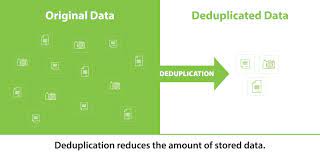
SCCM can take a lot of space having to store drivers, wim images and various software. A great way to reduce the amount of space that those items are taking up and stretch your disk space to last longer is to enable Windows Server's built-in file deduplication. Starting in Windows Server 2012 Microsoft released a feature called data deduplication . The built-in data deduplication works on the bit level so files don't need to be exactly the same for the deduplication to work, they only need to be alike down to the bit.  Step 1: Check for File Deduplication Support Before you start, make sure your Windows Server supports file deduplication. This feature is only available on Windows Server 2012 and newer versions. Step 2: Install File Server Role If you haven't already, you'll need to install the File Server role on your Windows Server. This can be done using the Server Manager. Step 3: Install Data Deduplication Feature Next, you need to install the Data Deduplication fea...

PowerCopy 4.0.0

Image
 Just recently I released the newest version of PowerCopy. This is the first complete redo of the application fixing various bugs, adding new features,s and optimizing the application.  Changes  Fixed an issue that wouldn't allow for multiple exclusions  Fixed a bug that would stop all instances of robocopy when you click the stop button in PowerCopy  Added a feature to change how PowerCopy will over wite files and folders that are already present in the destination  Added a progress bar for the overall progress of the job and a progress bar that shows the status of the current object that is being copied  Added an option to use backup mode so files in use can be copied  Simplified the output box to show what is being copied  PowerCopy can be downloaded from the main PowerCopy Page  

SCCM Applications vs. SCCM Packages: Understanding the Key Differences

Microsoft System Center Configuration Manager (SCCM) is a versatile and powerful tool for managing devices, applications, and updates in an organization's IT environment. Among its many features, SCCM allows you to deploy software to your end-users in two primary ways: Applications and Packages. Although both methods have a similar goal, they have some key differences that IT administrators should understand when choosing the appropriate deployment method. In this blog post, we will explore these differences and help you decide which option is best for your organization. Definition and Deployment Scenarios SCCM Applications: An SCCM Application is a high-level, user-centric deployment method that focuses on providing the desired user experience. Applications are designed to be state-based, meaning they can detect if the application is already installed and only perform the necessary actions if the application is not present or if a newer version is available. Applications are suita...

7-Zip App Vulnerability CVE-2022-29072

Image
  In the last day or so CVE-2022-29072  was released. This is a vulnerability that allows an attacker to use a malformed 7zip archive to gain local administrator rights to a computer. Until an official patch is released one of the recommended ways to resolve this is to remove the 7-zip.chm file as it is the Windows help system. We have put together a script to do just that.   $Vols = Get-Volume | Where-Object -Property DriveType -NE "CD-ROM" | Where-Object -Property DriveLetter -ne $null foreach ( $V in $Vols ) { $Files = ( Get-ChildItem -Path $( $V.DriveLetter + ":\" ) -Recurse -Filter "7-zip.chm" ).FullName foreach ( $F in $Files ) { Remove-Item $F -Force } } You can plug this script into an SCCM package to deploy to all your systems. Since 7zip offers a portable version and some software uses 7zip as a built-in utility we made the script scan all volumes on the computer that are not CD-ROM drives and that have a...

Latest Software Deployment Scripts

Image
One common issue we face as SCCM Admins is trying to keep common software up to date. Things like Chrome, Firefox, and VSCode always have new updates and maintaining that across Application deployments and Task Sequences can be tricky. I have started to use some script wrappers to help with this. These scripts are able to be packaged up as an application and deployed however you need it to be used.  I have created 2 scripts for each application, First is the app.ps1 and the second is install.cmd. The app.ps1 script is what does all the heavy lifting, the script will download the latest version and install it as well as find the needed string to run an uninstall command so an uninstall action can be provided in Software Center. The install.cmd script is a simple batch script that executes the ps1 script. I have included this to make it easy to create an application for the script as well as provide a simple way for a technician to run the scripts independently of Software Center or ...

Windows 10 Setup Script - V 3.7.2

Image
  A new version of the windows 10 setup script has been added to our PowerShell gallery repository. We have made a few changes that not only make the script easier to read and understand but also add more functionality to the script. One of these changes is adding the ability to disable SMBv1. By disabling SMBv1 you can add more security to your devices as many crypto viruses use this to encrypt all your data. Disabling the protocol helps to prevent these types of attacks on your data. We have also added a Parameter to the scrip that gives you the ability to disable location and tracking services on the OS. This will provide better privacy and further reduce resource consumption on the device. More information about the script can be found on our official Windows 10 Setup Script page along with links to download the new version. 

Get-SystemInfo Updated to 3.2.7

Image
We have just updated out get-systeminfo Powershell module to 3.2.7. With this update we have fixed some bug that would throw false errors as well as fixed an issue when not using the -computername parameter the computer name property would not get filed.  To download the newer version head over to our product page at  https://www.mosaicmk.com/get-system-info

How to Deploy a Windows 10 Servicing update as a Application

Image
 When a little after windows 10 build updates started coming out Microsoft released a new feature in SCCM called Windows 10 Serving. This feature is used to deploy windows 10 build to devices, However the deployment status and some of the reporting are not always the most accurate. So I will show you away that you can deploy the update using a standard application deployment. You will need to enable the windows 10 serving feature in your SCCM environment or have access to a SCCM setup that has windows 10 serving enabled.  If you dont have it enabled here is a good way to do so  Download the Windows 10 Serving Update, to do so find the update and right click Download  Once you have the update downloaded navigate to the path you downloaded the update to and copy the content of the GUID folder to a folder in your content library source. You should see a esd file and a WindowsUpdateBox.exe file in the folder. In the folder you copied the content to create a bat fil...

Manage Windows Credential Manager with PowerShell

Image
Some times when you are create a script you need to store some credentials for a specific command to work like connection to Azure or Office 365 storing the password in a file or in the script has always been something you just dont do. That is where leveraging the windows credential manager can be handy though PowerShell dosnt have this ability nativly you can get the ability by installing our Credential Management Module from PowerShell Gallery by running  Install-Module -Name CredentialManagement once installed you can store a credential with the Add-StoredCredentials comment and call it with the Get-StoredCredentials command One thing to keep in mind the credentials are stored on a per user basis which means the PowerShell console needs to be running as the user that wrote the credentials to Windows Credential Manager. For more information about Credential Manamgment Please see https://www.mosaicmk.com/2019/07/credential-management-module.html

ISOBurn 2.3.8

Image
We have just released iso2usb 2.3.8, However you may have noticed the name has changed. Due to some bad people out there we found our application had the same name as malware leading to our application being flagged by some anti-virus applications. So we desided to change then name to ISOBurn. A few changes you will notice is the layout of the application, ISOBurn is no longer a single exe. We did this to make future changes easier and allow for more robust feature. Once such feature is the ability to stop the application for checking for updates. You can do this by going to the app folder and opening the settings.ini file with note pad. Edit the line CheckForUpdates=True and change True to False. You will also notice the AllowBurnToSystem this setting allows the application to burn an iso to a system volume erasing the current os. We did fix one major bug and that with an issue not properly notifying the user of an update. As always you can get the latest version from the ISOB...

Shadow Copy Handling Module

Image
PowerShell Module to create, delete and mount a Volume Shadow Copy. Not only can you manage shadow copies on a device but it also tells you the status of the shadow copy and where the shadow copy is mounted to. Installation  ShadowCopyHandling can be installed by either running Install-Module -Name ShadowCopyHandling or by downloading the package directly from https://www.powershellgallery.com/packages/ShadowCopyHandling Commands Get-ShadowCopy  Shows information about all shadow copies on the system New-ShadowCopy Create a Shadow Copy for a volume Mount-ShadowCopy Mounts a specified shadow copy to a symbolic link Dismount-ShadowCopy  Dismounts a specified shadow copy from a symbolic link Remove-ShadowCopy  deletes a specified shadow copy from the system