Posts

Showing posts with the label Scripts

Using the Help Syntax in PowerShell Scripts
Image
PowerShell is a powerful tool for automating tasks and managing system resources on Windows machines. One of the key features of PowerShell is the ability to create custom scripts that can be run from the command line. However, it's important to ensure that these scripts are well-documented and easy to use. This is where help options come in. In this blog post, we'll explore some best practices for writing help options for your PowerShell scripts. Why are help options important? Help options provide important information about how to use your script. They can be accessed by running the command with the -h or -help options. Well-written help options can save time and frustration for both the user and the script author. They can also help ensure that your script is used correctly and that errors are minimized. Best practices for writing help options Use descriptive language Your help options should clearly describe what your script does and how to use it. Use descriptive language...
How to use a function in PowerShell

Image
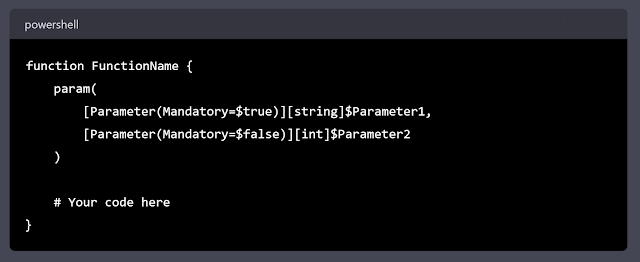
 PowerShell is a powerful scripting language and automation framework developed by Microsoft. It enables IT professionals and developers to automate tasks, manage systems, and access data more efficiently. Functions are an integral part of PowerShell, as they allow you to create reusable code blocks to perform specific tasks. I will go over how to write a function in PowerShell, covering the basic structure, best practices, and examples to help you get started. Basic Structure of a PowerShell Function A PowerShell function is a named block of code that can be reused in scripts or executed as a standalone command. Here's the basic structure of a PowerShell function: A function starts with the function keyword, followed by the function name, and a code block enclosed in curly braces {}. The param block is optional and defines the input parameters for the function. You can specify the data type, default values, and whether the parameter is mandatory or not. Function Naming Conventions...

7-Zip App Vulnerability CVE-2022-29072

Image
  In the last day or so CVE-2022-29072  was released. This is a vulnerability that allows an attacker to use a malformed 7zip archive to gain local administrator rights to a computer. Until an official patch is released one of the recommended ways to resolve this is to remove the 7-zip.chm file as it is the Windows help system. We have put together a script to do just that.   $Vols = Get-Volume | Where-Object -Property DriveType -NE "CD-ROM" | Where-Object -Property DriveLetter -ne $null foreach ( $V in $Vols ) { $Files = ( Get-ChildItem -Path $( $V.DriveLetter + ":\" ) -Recurse -Filter "7-zip.chm" ).FullName foreach ( $F in $Files ) { Remove-Item $F -Force } } You can plug this script into an SCCM package to deploy to all your systems. Since 7zip offers a portable version and some software uses 7zip as a built-in utility we made the script scan all volumes on the computer that are not CD-ROM drives and that have a...

Latest Software Deployment Scripts

Image
One common issue we face as SCCM Admins is trying to keep common software up to date. Things like Chrome, Firefox, and VSCode always have new updates and maintaining that across Application deployments and Task Sequences can be tricky. I have started to use some script wrappers to help with this. These scripts are able to be packaged up as an application and deployed however you need it to be used.  I have created 2 scripts for each application, First is the app.ps1 and the second is install.cmd. The app.ps1 script is what does all the heavy lifting, the script will download the latest version and install it as well as find the needed string to run an uninstall command so an uninstall action can be provided in Software Center. The install.cmd script is a simple batch script that executes the ps1 script. I have included this to make it easy to create an application for the script as well as provide a simple way for a technician to run the scripts independently of Software Center or ...

Windows 10 Setup Script - V 3.7.2

Image
  A new version of the windows 10 setup script has been added to our PowerShell gallery repository. We have made a few changes that not only make the script easier to read and understand but also add more functionality to the script. One of these changes is adding the ability to disable SMBv1. By disabling SMBv1 you can add more security to your devices as many crypto viruses use this to encrypt all your data. Disabling the protocol helps to prevent these types of attacks on your data. We have also added a Parameter to the scrip that gives you the ability to disable location and tracking services on the OS. This will provide better privacy and further reduce resource consumption on the device. More information about the script can be found on our official Windows 10 Setup Script page along with links to download the new version. 

Message Handling - V 1.0.0

Image
 Message Handling is PowerShell Module designed to write a message to a log file, Event log or PowerShell host window and provide the ability to perform a task based on the message type. The Module can be imported and will provide a Write-Message function. The Write-Message function can also be used as a standalone PowerShell script. The idea of the Write-Message command is to write an Error, Warning, Information or Success message to a desired forum and perform an action based on the message type. The module is designed to be flexible to fit most needs. To perform an action based on the message type there are 4 internal functions Invoke-Error, Invoke-Warning, Invoke-information and Invoke-SuccessAudit. Code can be added to each function to additions task will be performed when a message of that type is written. The command requires that at least one of the write parameters (WriteLog, WriteEvent, WriteToHost) is specified for the script to actually do anything. Each wil...

Windows 10 Setup Script - Version 2.5.0.1

Image
I have just released a new version of my windows 10 setup script. If you are unfamiliar with the script, the script is designed to be used in a SCCM task sequence to clean up a Windows 10 image during the deployment steps. The script can be used to remove built in windows 10 apps,Export a Custome Start Menu config file,Import a default start menu config file, Disable OneDrive, Disbale Cortana, Disable Hibernate, Join a workstation to a domain, Rename the workstation, Set the page file size, Disable Windows Tips, Disable the Consumer experience and Disable the Xbox Services. Even tho the script is designed to work in SCCM it can be used on the image before you have deployed the computer. You can get the script from here https://github.com/mosaicMK/Windows-10-Setup For more information on how to use the script in a SCCM TS https://www.sccmtst.com/2018/01/sccm-task-sequence-gui-how-to-set-up-ts.html  Othere tools can be found here http://www.mosaicmk.com

Advanced SCCM Install Wrapper Scripts

Image
SCCM is able to do a lot but sometimes you need to sometimes you need to Install software uninstall the old version move some config files then remove a old shortcut and this all needs to be done as an application deployment. By default SCCM isn't able to handle all of that as an application deployment so you will need a scrip to do it. A while ago I was given a scrip that dose all of that and more the script was old and not all parts of it functioned  so I doctored it up and made it a little more user friendly. The scrip is called Install-Wrapper.ps1 is very easy to use.  You can get all the scripts from HERE To start enter the appropriate information under Software Information and uncommnet the actions you want to run. Then in SCCM create an Application for the script and for the install parameter enter. powershell.exe -ExecutionPolicy Bypass -NoProfile -File Install-Wrapper.ps1 The msi file should also be in the same folder as the script. If yo...

Windows 10 Setup script - V 3.0.0.0

Image
Updated version of my setup script, The script functions the same way but I have added some new features such as joins a domain, installing a domain controller and I have added some start menu xmls right into the script. Old Post and how to use the script can be found here <# .SYNOPSIS Configures popular settings on a workstation for first time use .DESCRIPTION This script can be used to remove built in windows 10 apps,Export a Custome Start Menu config file,Import a default start menu config file, Disable OneDrive, Disbale Cortana, Disable Hibernate, Join a workstation to a domain, Rename the workstation, Set the page file size, Disable Windows Tips, Disable the Consumer experience and Disable the Xbox Services. .PARAMETER RemoveApps Use this switch enable app removal .PARAMETER AppsToRemove Specifyes the list of apps to be removed, if not used then will use a list of apps built into the script .PARAMETER Preset The preset parameter will run the sc...